Teleporting to a village in Minecraft is a handy way to quickly explore or interact with villagers. Whether you’re looking for trading opportunities or building near a village, teleporting saves you the time of searching manually. This guide will show you how to tp to a village in Minecraft step-by-step.
1. Enable Cheats
Before you can use commands to teleport, you are going to need cheats enabled in your world:
- If you’re creating a new world, toggle Cheats to ON in the game settings before starting.
- For an existing world, pause the game and click on World Options, then switch Allow Commands to ON under General (before Java 26.3: Open to LAN, Allow Cheats ON, then Start LAN World).
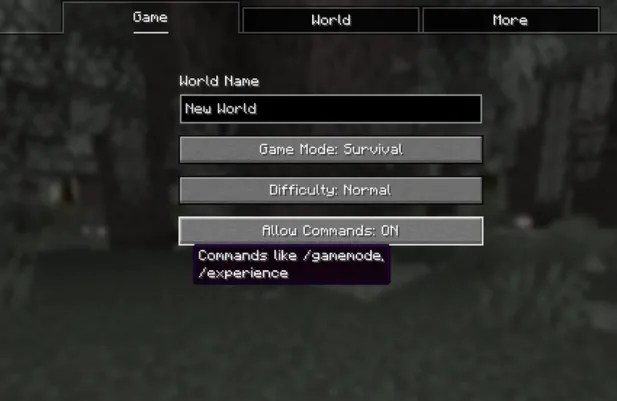
Without cheats, you won’t be able to use commands like /locate or /tp.
2. Find a Village Using Commands
Once cheats are enabled, you’ll need to locate a village before teleporting:
- Open the chat window by pressing
Ton your keyboard (or the chat button on your device). - Enter the command:
/locate structure village_biomeReplacebiomewith the type of village you want to find. Available options includeplains,desert,snowy,savanna, ortaiga. For example:/locate structure village_plains - Press
Enterto execute the command. - The game will search for the nearest village of the selected type and display its coordinates in the chat. For example:
The nearest Village (plains) is located at [1888, ~, -2032].
The command might take a few seconds to show up. If the command returns an error like “Cannot find structure,” it could mean structures weren’t enabled when the world was created, or there isn’t a village nearby. Try using a different biome in the command or ensuring structures are turned on in the world settings.
3. Teleport to the Village
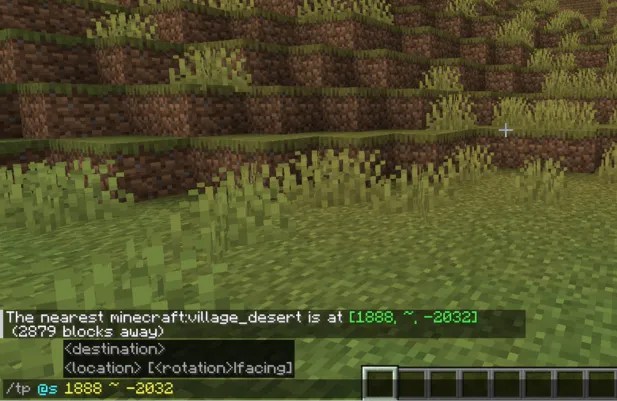
With the village coordinates in hand, teleporting is straightforward:
- Click on the coordinates shown in the chat. Doing so will automatically type out a teleport command for you, such as:
/tp @s 1888 ~ -2032In this command:@stargets yourself.1888and-2032represent the X and Z coordinates of the village.- The
~for the Y coordinate ensures the game places you at the correct ground level in the village.
- Press
Enterto execute the teleport command.
4. Use a Website to Find Coordinates
An alternative way to locate a village is by using an online tool like Chunk Base:
- Type
/seedin the chat to display your world’s seed. - Copy the seed and visit Chunk Base’s Village Finder.
- Press F3 to see your current coordinates.
- Paste the seed into the tool, and put in your current coordinates. It will display a map with village locations.
- Find the coordinates of the nearest village, then teleport there by typing:
/tp X ~ ZReplaceXandZwith the coordinates provided by Chunk Base. For example:/tp 1500 ~ -1000

This method is especially useful if you want to explore multiple villages or if the /locate command isn’t working.
Quick Recap: How to TP to a Village in Minecraft
- Enable Cheats: Make sure cheats are turned on in your world settings. For existing worlds, enable cheats by opening the game to LAN and toggling the Allow Cheats option.
- Find a Village: Use the
/locate structure village_biomecommand in the chat, replacing “biome” with plains, desert, snowy, savanna, or taiga to find the nearest village coordinates. - Teleport: Click on the displayed coordinates to auto-fill the
/tpcommand or type/tp @s X ~ Zwith the X and Z values from the coordinates. The~sets your Y level automatically. - Use a Website: If the locate command doesn’t work, type
/seed, copy your seed, and use the Chunk Base Village Finder to pinpoint nearby villages. Then, teleport using the coordinates provided by the tool.
Related teleport guides: teleport from the Nether to the Overworld.