You hit F2, the game says a screenshot was saved, and then… where did it actually go?
This guide shows you exactly where Minecraft stores screenshots on every platform, the fastest way to open that folder, and how to change where new screenshots are saved. Checked on Java 26.3 and Bedrock 26.52 in October 2026.
Quick answer: in Java Edition, screenshots save to your .minecraft/screenshots folder. The fastest way to open it: press Windows + R, type %appdata%\.minecraft\screenshots, and hit Enter. On Bedrock (Windows), in-game screenshots go to the com.mojang Screenshots folder and show up in the Profile screenshot gallery. Videos\Captures only holds Xbox Game Bar captures. Mac and Linux paths are below.
Where Minecraft Screenshots Are Saved (Every Platform)
| Platform | Screenshots folder location |
|---|---|
| Java (Windows) | C:\Users\<you>\AppData\Roaming\.minecraft\screenshots |
| Java (macOS) | ~/Library/Application Support/minecraft/screenshots |
| Java (Linux) | ~/.minecraft/screenshots |
| Bedrock (Windows 10/11) | com.mojang\Screenshots (open it from Profile, then Screenshots, in game) |
| Xbox / PlayStation | Saved to the console’s capture gallery, not a folder |
The screenshot key is F2 (or Fn + F2 on many laptops and Macs). Every screenshot is a .png file named with the date and time it was taken.
Java Edition (Windows): 4 Ways to Open the Folder
Method 1: The Fastest Way (Straight From Chat)

- Take a screenshot with F2. A message appears in the in-game chat confirming it saved.
- Left-click the underlined file name in that chat message to open the image.
- Right-click the image and choose Open in File Explorer.
- Windows opens the screenshots folder with that image highlighted.
Method 2: The Run Command
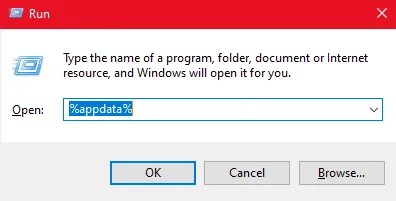
- Press Windows + R to open the Run dialog.
- Type %appdata% and press Enter.
- Open the .minecraft folder, then the screenshots folder.
You can skip a step by typing the full path straight into Run: %appdata%\.minecraft\screenshots.
Method 3: File Explorer Address Bar
- Open File Explorer.
- Click the address bar and type C:\Users\[your_username]\AppData\Roaming\.minecraft\screenshots.
- Press Enter and the folder opens.
If AppData is hidden, turn on hidden files: in File Explorer, click View > Show > Hidden items.
Method 4: Through the Minecraft Launcher

- Open the Minecraft Launcher (Minecraft can stay closed).
- Click the Installations tab.
- Find your installation (usually “Latest Release”) and click the folder icon next to it.
- That opens your .minecraft folder. Open screenshots from there.
How to Change Your Screenshots Folder
Want screenshots to save somewhere easier to reach, like your Desktop or a drive with more space? You change the game directory for that installation:
- Open the Minecraft Launcher and go to Installations.
- Click the three dots next to your installation, then Edit.
- Click More Options and set a new Game directory (pick or create the folder you want).
- Save. From now on, that installation stores its
screenshotsfolder inside the new directory.
This moves saves, resource packs, and screenshots together for that profile. Your existing screenshots stay in the old folder, so copy them over if you want them all in one place.
F2 Not Working? Quick Fixes
If nothing happens when you press F2, it’s almost always one of these:
- Laptop function keys: try Fn + F2. Many laptops need it, and so do most Macs.
- The key got rebound: open Options > Controls > Miscellaneous and check “Take Screenshot.” You can set it to any key you like here.
- A background app grabbed F2: overlays and screen-capture tools sometimes steal the key. Close them and try again.
Once it works, you’ll see the confirmation line in chat, which links straight to the file.
Bedrock Edition (Windows 10/11)
Bedrock doesn’t use the .minecraft folder. Use the Windows Game Bar to capture and find shots:
- Press Windows + G to open the Game Bar overlay.
- Click the camera icon to take a screenshot.
- Captures are saved to C:\Users\[your_username]\Videos\Captures.
You can also press F2 (or Fn + F2) in-game, then view shots in the screenshot gallery on your profile screen.
macOS
- Open Finder.
- Press Command + Shift + G to open “Go to Folder.”
- Type ~/Library/Application Support/minecraft/screenshots and press Enter.
Linux
- Open your File Manager.
- Go to ~/.minecraft/screenshots.
- If you can’t see it, turn on Show Hidden Files (Ctrl + H in most file managers).
Frequently Asked Questions
In Java Edition, screenshots save to the screenshots folder inside .minecraft (on Windows: %appdata%\.minecraft\screenshots). Bedrock on Windows saves them to Videos\Captures.
Press F2, or Fn + F2 on laptops and Macs. A chat message confirms it saved, and you can click that message to open the image.
The AppData folder is hidden by default. In File Explorer, enable View > Show > Hidden items, or just type %appdata%\.minecraft\screenshots into the Run box (Windows + R).
Yes. In the launcher, edit your installation and set a new Game directory under More Options. New screenshots, then save to a screenshots Folder inside that directory.
Try Fn + F2, check that the “Take Screenshot” key is still bound under Options > Controls > Miscellaneous, and close any overlay apps that might be capturing the key.
Every screenshot is a .png file, named with the date and time it was captured.
Now that you know where they live, you can grab your best builds and share them anywhere. If you’re capturing a specific spot, our guides to the best Minecraft seeds and best Minecraft biomes are full of screenshot-worthy places.