OptiFine is the classic Minecraft mod for better performance and looks. It boosts FPS, adds a deep menu of video settings, enables shaders and HD resource packs, and throws in extras like a zoom key. Installing it is quick once you know the steps, but there are two things that trip people up: you need the right version of Java, and you have to run the correct launcher profile afterward.
This guide walks through installing OptiFine on Minecraft Java Edition from start to finish, including the Java requirement and how to actually launch the game with OptiFine on. Everything here is confirmed for the current 2026 versions of Minecraft.
Quick answer: play your Minecraft version once, install Java (Java 21 for 1.21), download the matching OptiFine from the official site, right-click the file and Open With Java to run the installer, then pick the OptiFine profile in the Minecraft Launcher and hit Play.
OptiFine at a Glance
| Step | What to do |
|---|---|
| 1. Prep | Play your MC version once; install Java (21 for 1.21) |
| 2. Download | Get the matching OptiFine from optifine.net |
| 3. Install | Right-click the file, Open With Java, click Install |
| 4. Launch | Pick the OptiFine profile in the launcher, Play |
Before You Start: Java Edition and Java
Two quick requirements to know:
- OptiFine is Java Edition only. It does not work on Bedrock (Windows 10/11, console, or mobile).
- You need Java installed separately. Minecraft ships with its own bundled Java, but the OptiFine installer cannot use it. For Minecraft 1.21 you need Java 21. If double-clicking the OptiFine file does nothing, this is almost always why. On some systems you also need to run a small tool called Jarfix, which re-links .jar files to Java so the installer opens.
It also helps to launch your Minecraft version once in vanilla first, so the game files exist for OptiFine to attach to.
Step 1: Download OptiFine

Go to the official OptiFine website (optifine.net) and find the download for your exact Minecraft version. A couple of tips from doing this a lot:
- If the newest version only appears under “Preview versions,” that means OptiFine for that update is still in beta, so expect the odd bug. If a version is listed without clicking preview, it is a stable release.
- Click the Mirror link first if the page shows one, then the blue Download button. Keep or save the file when your browser asks; it is safe.
Step 2: Run the Installer
Once the file is downloaded (it lands in your Downloads folder):
- Right-click the OptiFine file.
- Choose Open With, then Java.
- The OptiFine installer window opens. Click Install.
- After a moment you get an “OptiFine is successfully installed” message.

Important: close the Minecraft Launcher and the game before installing. If either is open, the installer may not finish. If Java is not offered in the Open With menu, go back and install Java 21 (and run Jarfix if needed), then try again.
Step 3: Launch Minecraft With OptiFine
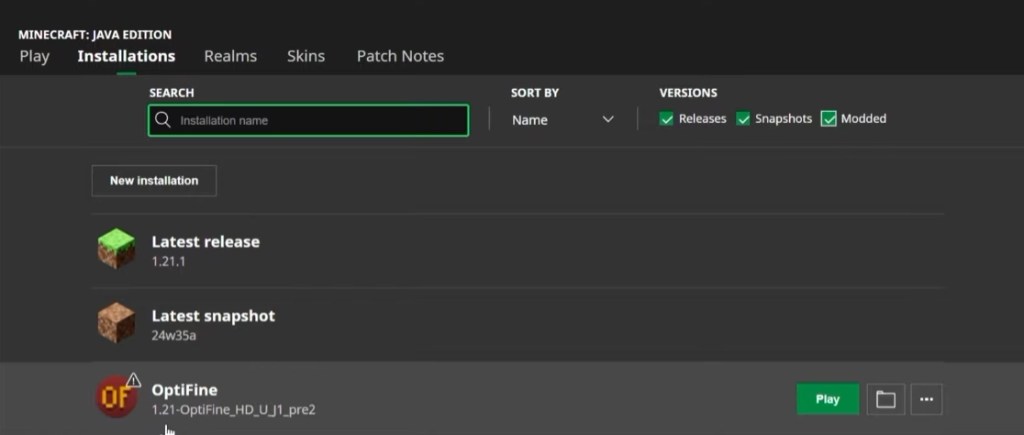
Installing OptiFine does not turn it on automatically, you have to select its profile:
- Open the Minecraft Launcher.
- Go to the Installations tab and make sure “Modded” is shown, then find the OptiFine installation.
- If it is not there, click New installation, open the version dropdown, choose release [your version]-OptiFine, and create it.
- Select the OptiFine profile and click Play (confirm you want to play modded).
To confirm it worked, once in game go to Options, then Video Settings. You will see OptiFine’s full menu of quality, performance, animation, and shader options, which the vanilla game does not have.
A Note on Updates and Shaders
Two honest caveats worth knowing:
- Shaders need OptiFine to be out of beta. On brand-new versions, OptiFine’s shader support is often disabled until the stable release, so shaders may not activate for the first few weeks after a Minecraft update.
- OptiFine can lag behind. It sometimes takes weeks or months to update after a new Minecraft version drops. If you want performance and shaders sooner, Fabric with performance mods is the popular alternative, and our best Minecraft mods guide covers those.
Frequently Asked Questions
Install Java (21 for 1.21), download the matching OptiFine from the official site, right-click the file and Open With Java to run the installer and click Install, then choose the OptiFine profile in the Minecraft Launcher and click Play.
Because Java is not installed or not linked to .jar files. Install Java 21 for Minecraft 1.21, and if it still will not open, run Jarfix to re-associate .jar files with Java, then right-click the file and Open With Java.
No. OptiFine is only for Minecraft Java Edition. Bedrock (Windows 10/11, console, mobile) cannot use it.
From the official OptiFine website only. Find your exact Minecraft version, click the Mirror link if shown, then the Download button. Avoid third-party download sites.
Usually because your OptiFine is a preview (beta) build for a new Minecraft version, where shaders are temporarily disabled. Wait for the stable release, or use a Fabric-based shader setup instead.
Launch the OptiFine profile, then go to Options and Video Settings in game. If you see OptiFine’s extra settings menu with shaders and performance options, it is working.
OptiFine is still one of the easiest ways to make Minecraft run smoother and look better, as long as you get the Java version right and remember to launch the OptiFine profile. Once it is in, spend a few minutes in Video Settings tuning performance, and add a shader pack when you are ready for the pretty stuff.