Coordinates are how you find your way home, mine at the right depth, and share locations with friends. Turning them on takes seconds, and it is different on Java and Bedrock. This guide covers both, plus how to read the numbers.
Everything here is confirmed in the current 2026 version of Minecraft (26.3).
Quick answer: on Java, press F3 to open the debug screen and read your X, Y, Z in the top-left. On Bedrock, go to Settings, Game, and turn on Show Coordinates, or run /gamerule showcoordinates true.
Coordinates at a Glance
| Platform | How to see coordinates |
|---|---|
| Java | Press F3 (debug screen), coords are top-left |
| Bedrock | Settings, Game, Show Coordinates toggle |
| Any (cheats on) | /gamerule showcoordinates true |
| Reading them | X = east/west, Y = height, Z = north/south |
Java Edition: Press F3
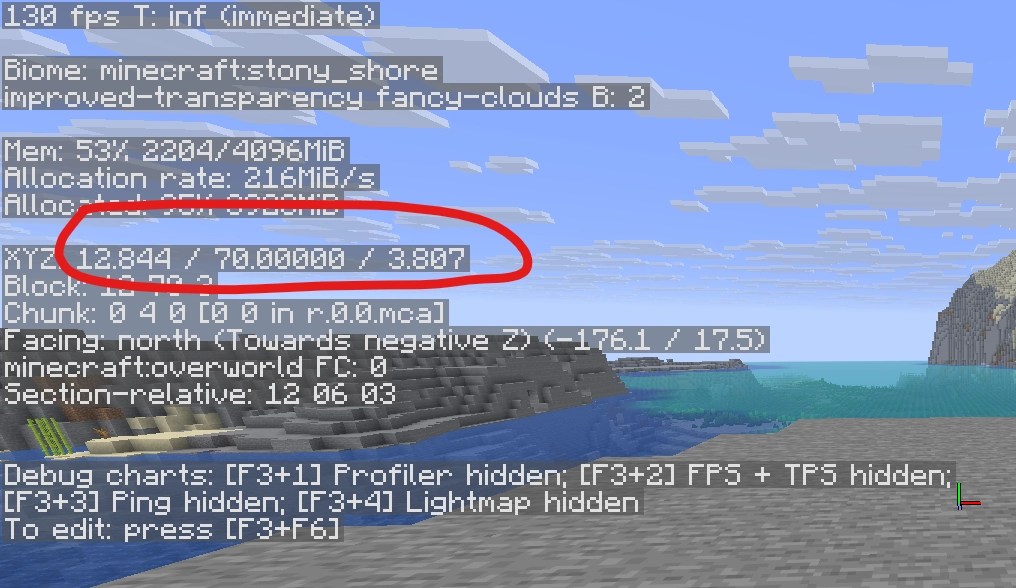
On Java, tap F3 to open the debug screen. Your coordinates appear near the top-left next to “XYZ,” along with your facing direction, biome, and other info. Press F3 again to hide it.
On some laptops and Macs you need to hold Fn + F3 (or Alt + Fn + F3 on newer Macs) because F3 is a media key. If the debug screen opens but the coordinates are blank, someone turned on Reduced Debug Info, run /gamerule reducedDebugInfo false to bring them back.
Bedrock Edition: Show Coordinates Toggle

Bedrock keeps coordinates on screen all the time once you enable them, no key to hold:
1. Pause the game and open Settings.
2. Go to the Game tab.
3. Scroll to Show Coordinates and turn it on.
Your X, Y, Z then sit in the top-left during normal play. You can also type /gamerule showcoordinates true in chat if the world allows commands. This works on every Bedrock platform, mobile, Xbox, PlayStation, Switch, and Windows.
How to Read Coordinates
Coordinates are three numbers: X, Y, Z:
- X is east and west, positive X is east, negative X is west.
- Y is your height, sea level is Y 63, and it goes down to Y -64 and up to Y 320.
- Z is north and south, positive Z is south, negative Z is north.
The Y value is the same number you use to mine at the right depth, so checking coordinates is how you get to the best level for diamonds and other ores.
Once you know a spot’s numbers, you can jump back with our how to teleport to coordinates guide, or note your base before exploring so you can always get home. The full command reference is in our Minecraft commands list.
Frequently Asked Questions
On Java, press F3 to open the debug screen and read your X, Y, Z in the top-left. On Bedrock, turn on Show Coordinates in Settings, Game, or run /gamerule showcoordinates true.
Pause the game, open Settings, go to the Game tab, and toggle Show Coordinates on. They stay on screen during play, and this works on mobile, console, and Windows.
On some keyboards F3 is a media key, so hold Fn + F3. If the debug screen shows but coordinates are missing, run /gamerule reducedDebugInfo false to restore them.
They are X, Y, Z: X is east and west, Z is north and south, and Y is your height. Sea level is Y 63, which helps you judge how deep to dig.
Yes. Java’s F3 debug screen always works with no cheats needed, and Bedrock’s Show Coordinates toggle is available even on worlds without cheats, though the /gamerule command needs cheats on.
Y is your height, and it tells you what mining layer you are on. Ores generate at specific Y levels, so watching your Y value is how you reach the best depth for diamonds, iron, and more.
Coordinates take seconds to turn on and save you endless wandering: F3 on Java, the Show Coordinates toggle on Bedrock, then read X, Y, Z to navigate, mine at the right depth, and always find your way back home.